HOW IT WORKS
Expert help. Without the hassle.
From your first request to your support appointment, we keep things straightforward.
1. Tell Me What’s Wrong
Describe your computer problem — one session covers it all.
2. Book an Appointment
Choose an available time that works for you.
3. Secure Checkout
Pay $49.99 plus applicable tax and receive your confirmation.
4. Get Remote Support
Connect with me at your scheduled appointment.
Remote support is provided by scheduled appointment.
Before your appointment
You’ll need a Windows 11 or Windows 10 PC connected to the internet. Save open work and back up important files. At your appointment time you join from your Support Portal (see the guide below); you approve access and stay present during the session.
After your session
Read your technician’s findings and service summary in the support portal. If an issue needs hardware work, additional troubleshooting, or local service, we’ll explain the recommendations clearly.
STEP-BY-STEP GUIDE
How to join your remote support session
Ten simple steps from booking to finished. No technical knowledge needed — we’ll guide you the whole way.
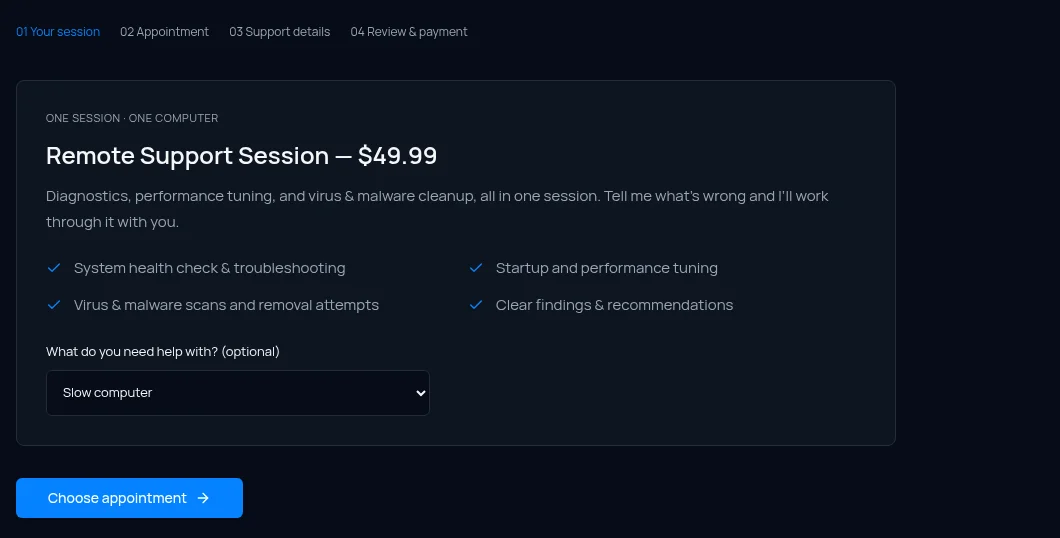
- 1
Book and pay for your session
Pick an appointment time and pay $49.99 securely. You’ll get a ticket number and a confirmation email.
- 2
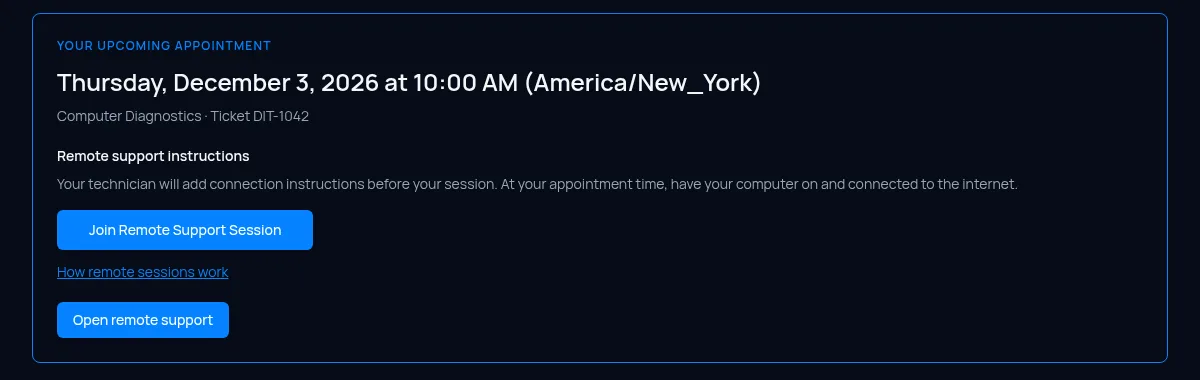
Sign in at your appointment time
Sign in to DirectITSupport.com and open your Support Portal. The Join button appears 15 minutes before your appointment.
- 3
Click “Join Remote Support Session”
It’s the blue button in your upcoming appointment card. Your technician is notified right away.
- 4
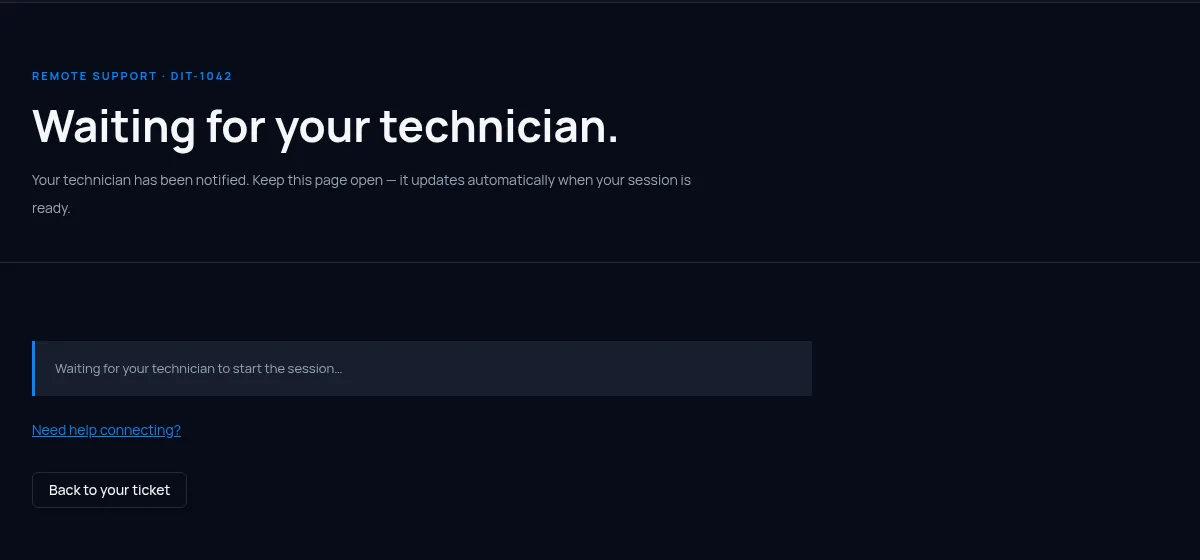
Wait in the waiting room
You’ll see “Waiting for your technician.” Keep this page open — it updates by itself when your session is ready.
- 5
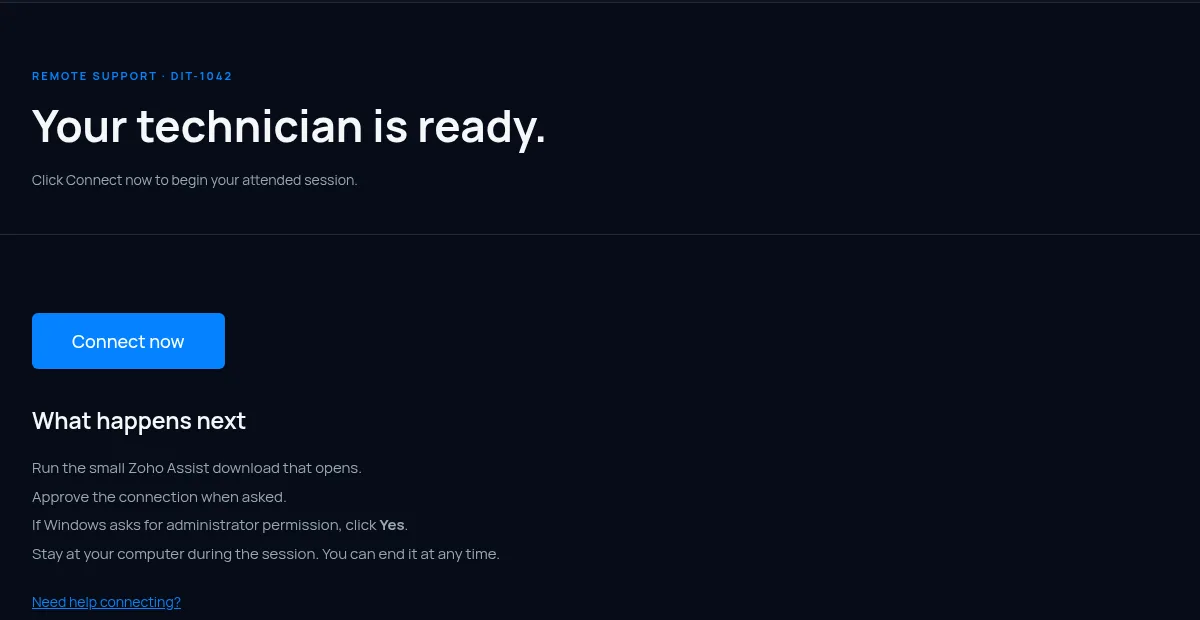
Click “Connect now”
When the page says “Your technician is ready”, click the big Connect now button.
- 6
Open the small Zoho Assist file
Your browser downloads a small one-time file. Open or run it from your browser’s downloads list. No account or sign-up needed.
IllustrationOpen fileZA_Connect.exe
Completed · small file
- 7
Click “Yes” on the Windows prompt
If Windows asks “Do you want to allow this app to make changes to your device?”, click Yes.
IllustrationDo you want to allow this app to make changes to your device?
Zoho Assist · Verified publisher
YesNo - 8
Allow your technician to connect
Click Allow (or Accept) so your technician can see your screen and help.
IllustrationYour technician would like to connect to your computer.
AllowDecline - 9
Approve administrator prompts if asked
During the session, your technician may ask you to click Yes on another Windows prompt or type your computer’s admin password.
IllustrationTo continue, enter an admin password.
••••••••YesNo - 10
All done
When we’re finished, the session closes and nothing stays installed on your computer.
IllustrationThe remote session has ended.
Close
Troubleshooting
Need Help With Your Computer?
Have a question before booking? Email me directly.
help@directitsupport.comMonday–Friday · 7 AM–7 PM ET
Book Remote Support — $49.99